I use different tools for different things. Google Calendar tells me where I need to be, TickTick tells me what I need to do, and Notion is where I organize and keep information.
I like having those boundaries. I don’t need one app to manage everything. But sometimes, the same information needs to exist in more than one place.
A meeting on my calendar might also mean there’s something I need to prepare for in TickTick and information I want to keep in Notion. I could manually copy those details every time, but that’s exactly the kind of repetitive work that can be automated.
As a personal demo project, I decided to see if I could make the apps talk to each other using Zapier.
What I Wanted to Build
The idea was simple: Google Calendar → TickTick → Notion.
Whenever I create a new event in Google Calendar, I wanted the workflow to automatically create a corresponding task in my Work Tasks list in TickTick and a meeting record in Notion.
One calendar event. Two automatic actions.
Each app would still serve its original purpose. Zapier would simply handle moving the information between them.
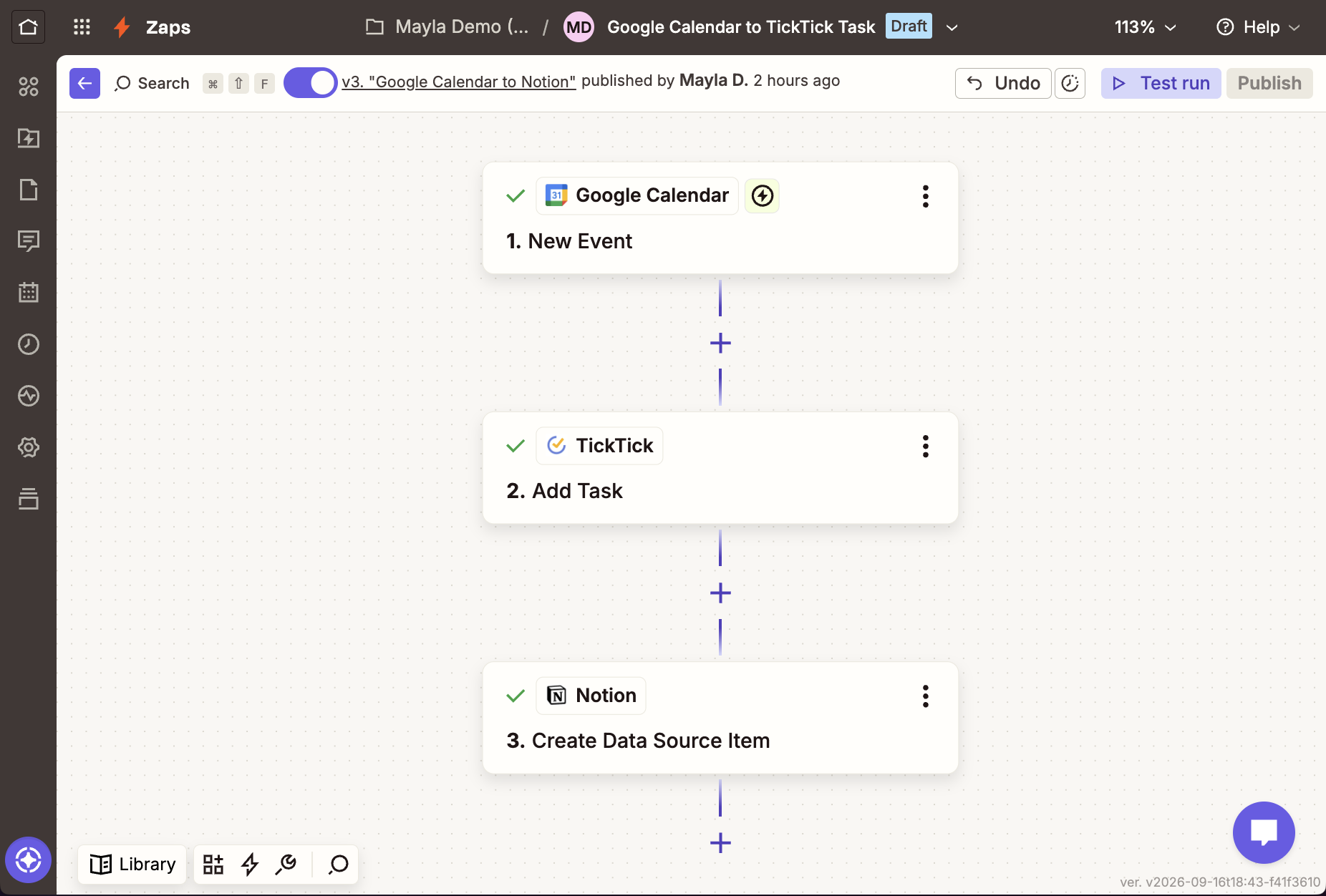
The three-step workflow I built in Zapier.
Building the Workflow
I started with Google Calendar as the trigger. Whenever a new event is created, Zapier picks up information from it, including the event title, description, and schedule.
Next, I connected TickTick. I mapped the calendar event title to the task name, the event description to the task details, and the schedule to the task date.
For testing, I created an event called Client Onboarding Call. Once the automation ran, the same event appeared automatically in my Work Tasks list in TickTick, complete with its description and schedule.
That was the first oh, this is actually working moment.
Then came Notion.
I created a simple Meetings database where I could keep the meeting name, date, status, source, and notes. The idea was to automatically create a record there whenever a new calendar event triggered the workflow.
This part wasn’t as smooth. Zapier wasn’t immediately picking up some of the properties I had created in Notion. I checked permissions, reconnected the integration, refreshed the database, recreated properties, and tested the workflow several times.
It was frustrating, but it also ended up being one of the most useful parts of the project. Following the steps to build an automation is one thing. Figuring out why it isn’t working is another.
Eventually, I got all three apps talking to each other.
The Result
Now, creating one calendar event triggers two actions automatically:
Google Calendar → TickTick → Notion
That’s one input → two automated actions.
Instead of creating the same information in three different places, I only enter it once. For every event, the workflow removes two manual steps: creating the TickTick task and logging the meeting in Notion.
It might only save a few minutes each time, but repetitive work adds up when you’re managing multiple meetings, projects, or clients throughout the week. More importantly, I don’t have to remember to update three different tools.
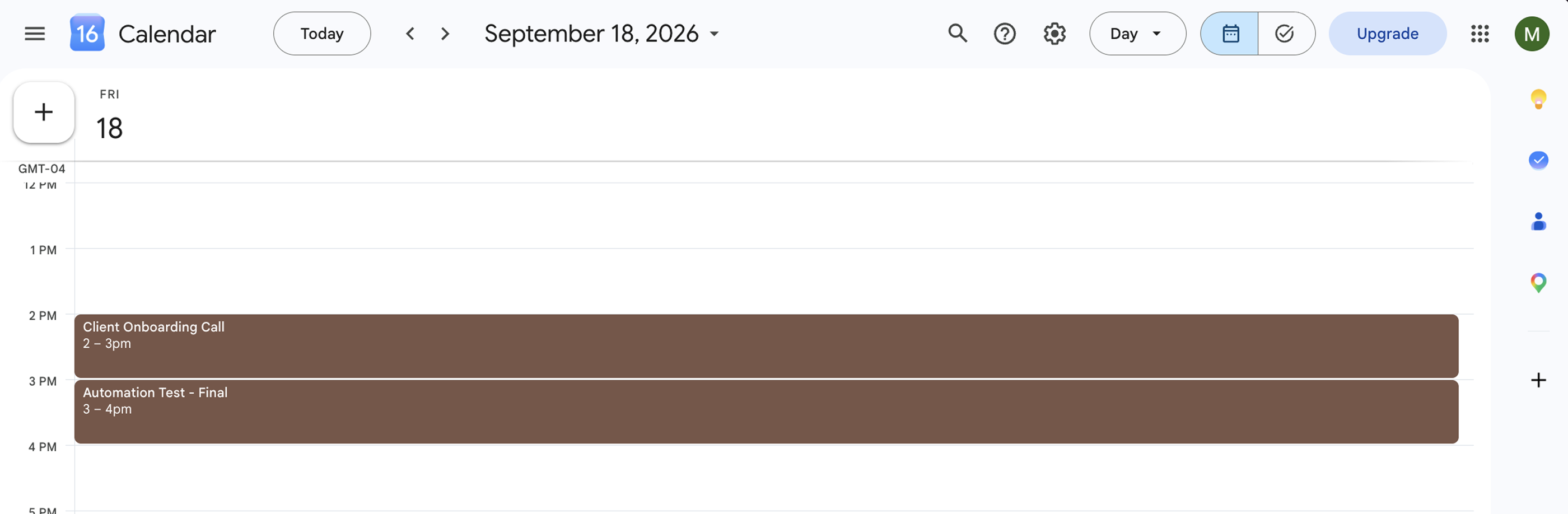
Google Calendar

TickTick and Notion
What I Learned
The biggest thing I learned from this project wasn’t actually how to use Zapier. It was understanding what is worth automating.
I use several apps because they have different purposes. Connecting them doesn’t mean turning them into one giant system or automatically sending everything everywhere. Some things make sense to automate because I’m simply moving the same information between tools. Other things don’t.
My journal, for example, stays manual. I don’t want my calendar or task manager automatically deciding what’s worth remembering. Sitting down, thinking about my day, and choosing what to write is part of the reason I journal in the first place.
That made me realize that a good system isn’t necessarily one where everything is connected. Automation should remove unnecessary work, not intentionality.
So as I continue experimenting with workflows, that’s probably the principle I’ll keep coming back to:
Don’t connect everything. Connect what makes sense.